Salesforce Target Company Sync
SmallWorld can automatically sync Accounts from your Salesforce instance and use them to create Target Companies in the platform. With the sync on, Admins and Requesters no longer need to actively manage their territories in SmallWorld and instead can rely on the system always being up-to-date.
To get started with the core Salesforce app, complete the steps outlined in this guide, then return here to setup the Target Company sync.
Setup Instructions
Step 1
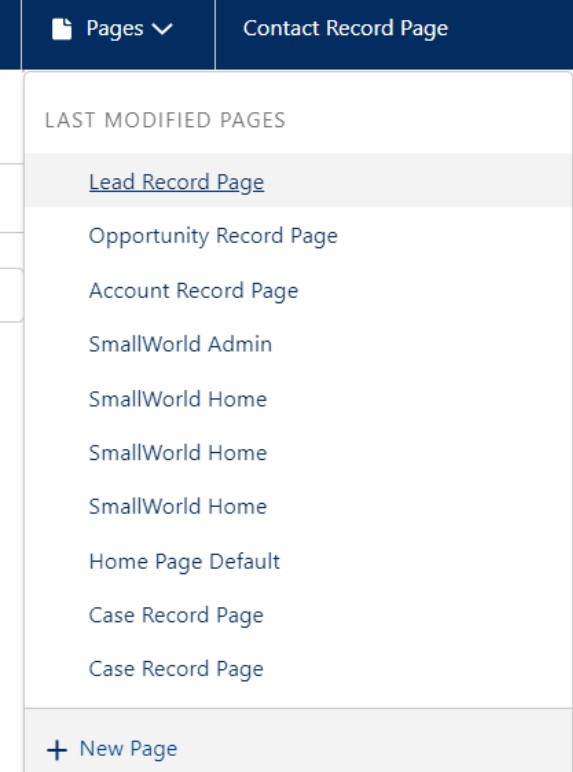
In Salesforce, access the Lightning App Builder by choosing Edit page via the Gear in the top right corner. From the top of the page, choose Pages then + New Page:
Step 2
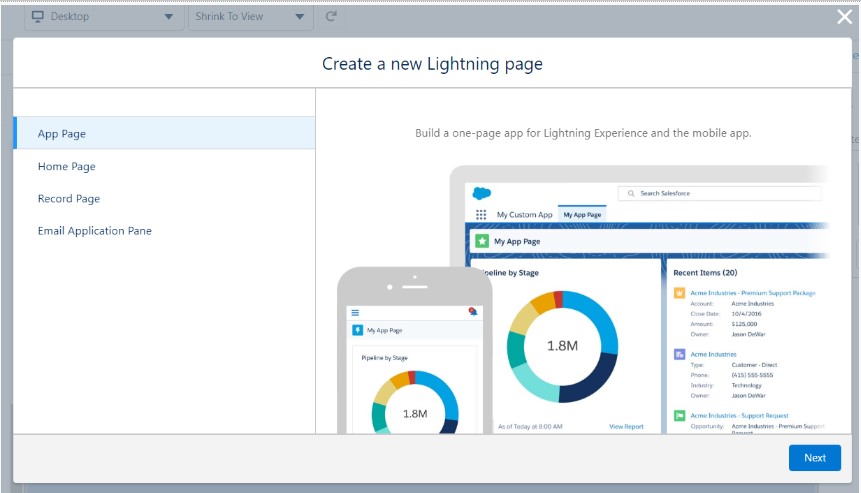
Choose App Page, then Next:
Step 3
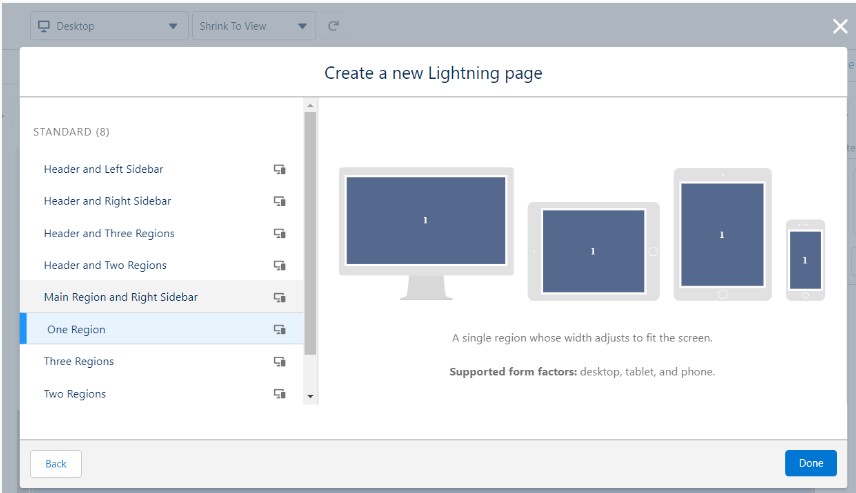
Name the page, choose One Region, then Done:
Step 4
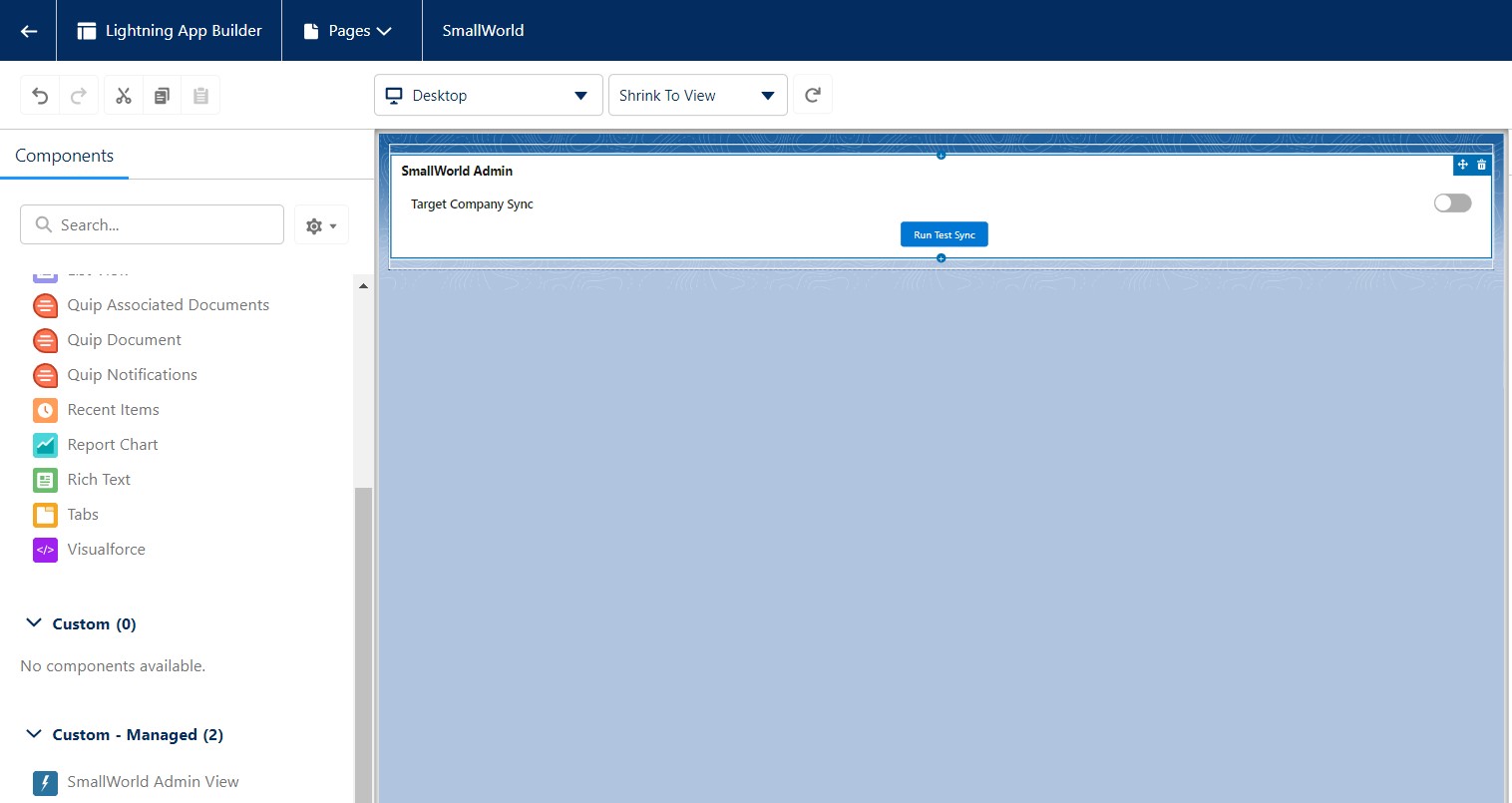
On the left, search for and drag the SmallWorld Admin View Component onto the page:
Step 5
Under Set Component Visibility, click + Add Filter, then Advanced:
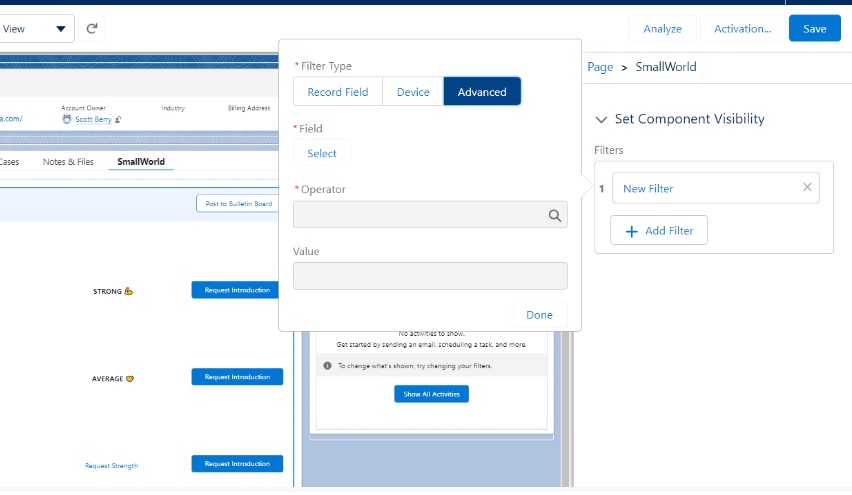
Step 6
After clicking Select under Field, Choose Permissions, Custom Permission, then SmallWorld.SmallWorld_Admin to restrict visibility to the users in the SmallWorld Admin Permission Set. Click Done:
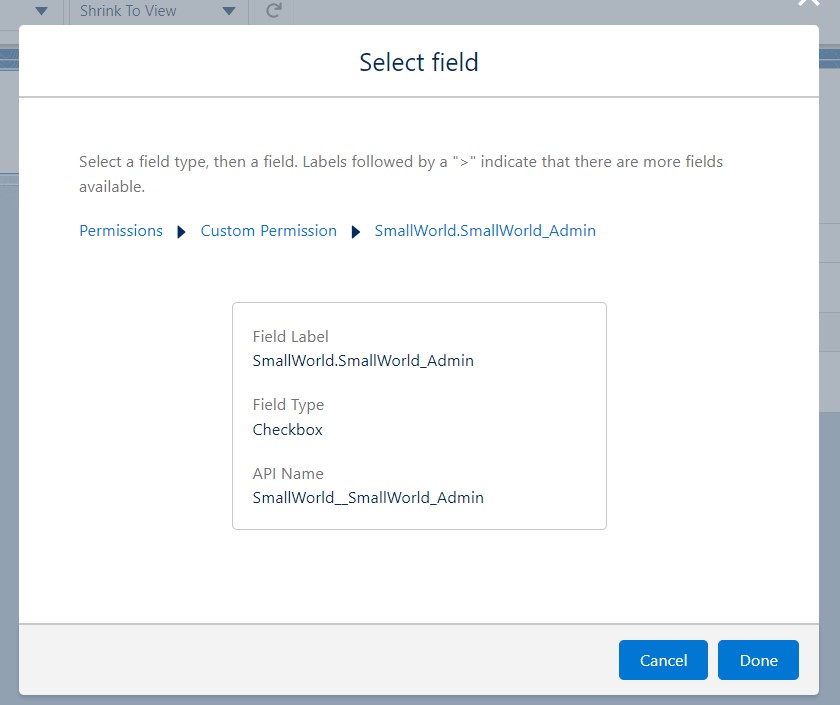
Step 7
After clicking Done, Save the page. Next, click Activation and choose Activate for system administrators only, then click over to Lightning Experience:
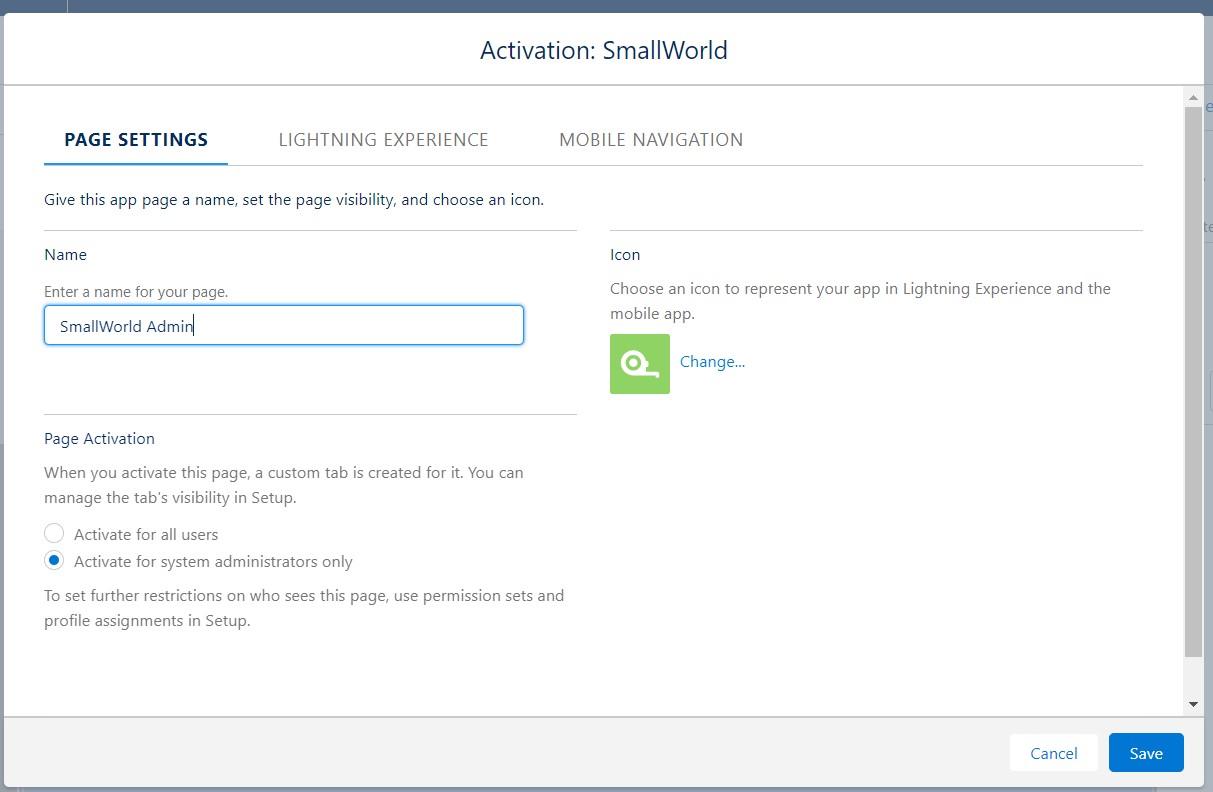
Step 8
Click Add page to app, select where it should appear and click Save:
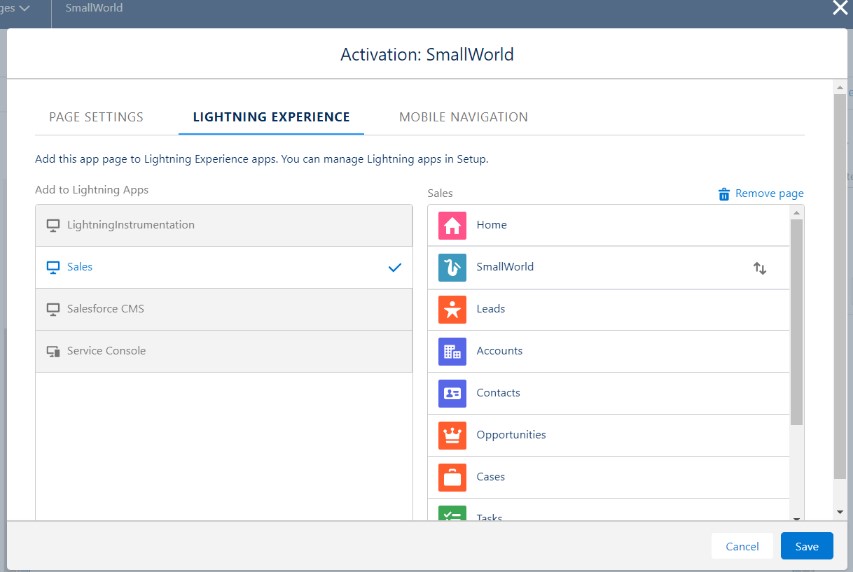
Step 9
Save the SmallWorld page to complete configuration in Salesforce. Visit the page and slide on the sync to enable the data transfer.
Step 10
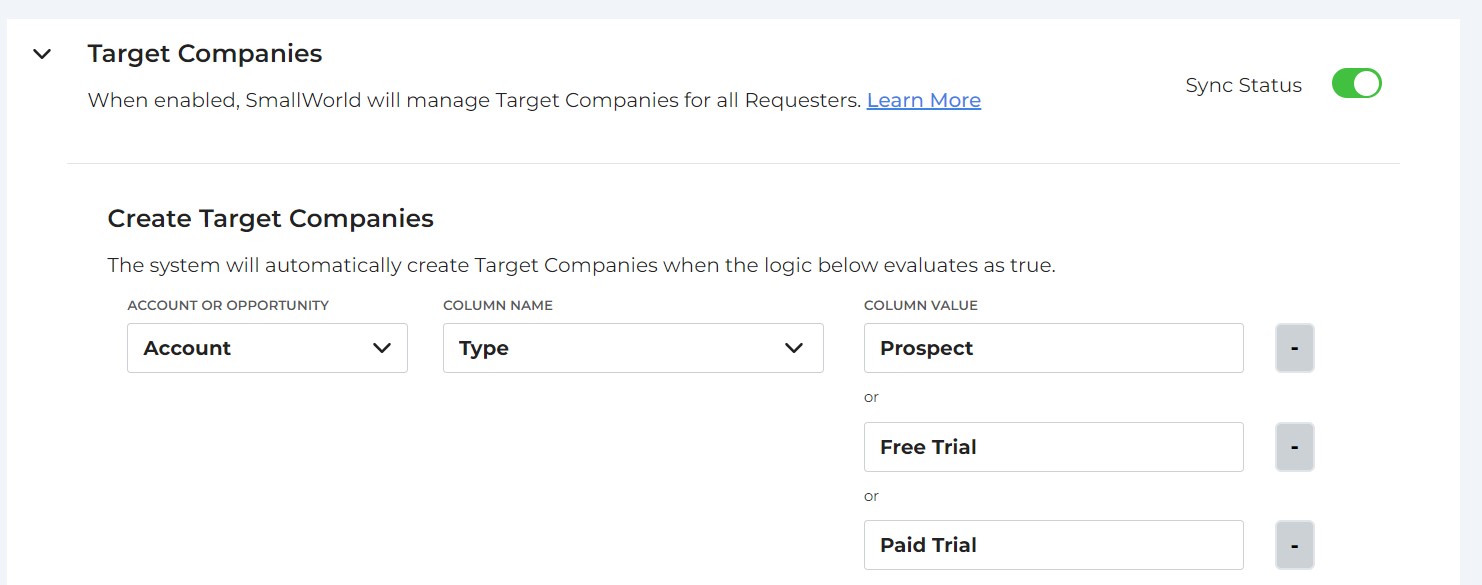
In SmallWorld, go to Misc --> Settings --> Configure Salesforce Data Sync, then enable it. Next, you'll be able to set a field for the system to use to decide if a Target Company should be created in SmallWorld for the account owner (assuming they are a Requester). If you want all owned accounts, pick a field and add each possible value. Most customers choose to restrict the account universe a bit, to bring in just (for example), high priority accounts, accounts with buying intent, accounts with open opportunities, etc:
Step 11
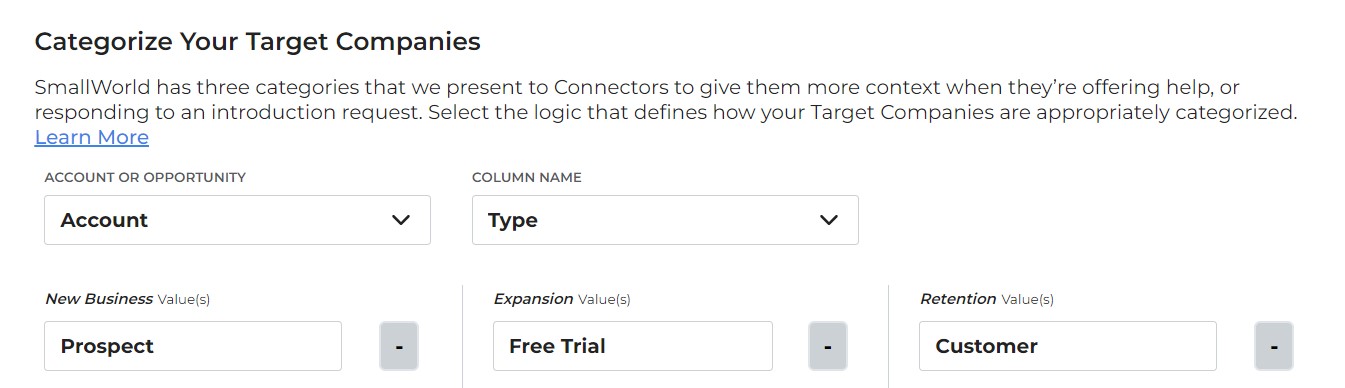
With the accounts to sync defined, you can now add additional logic to categorize them into New Business, Expansion and Retention buckets:
Step 12
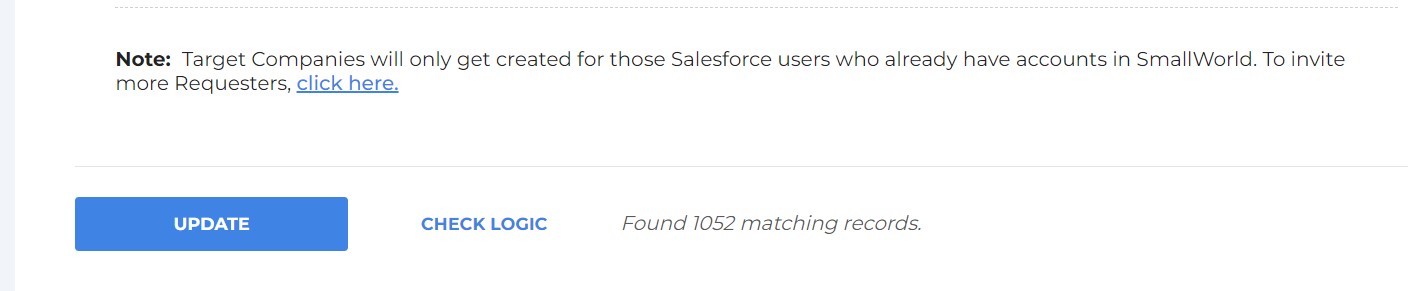
Use the Check Logic button to roughly confirm the sync and criteria are functioning properly. Save the configuration to kick off the sync:
SmallWorld will now automatically update the accounts on a nightly basis!
For any questions or issues, please don't hesitate to reach out to [email protected].