SmallWorld Slack App (Admin)
How to install the app to your Workspace
These steps need to be completed by a Workspace Administrator, or a user with permissions to install Slack apps:
- Visit this URL: https://www.smallworld.ai/slack-install
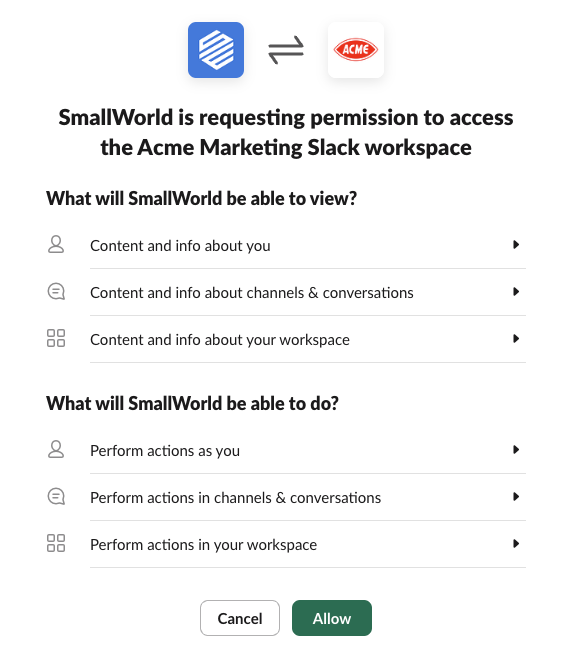
- Accept the permissions by clicking Allow (shown in the screenshot below).
- You'll be redirected to a page where you'll need to log in using your SmallWorld credentials.
- After logging in, return to Slack and open the SmallWorld App that was added to the sidebar.
That's it! Future requests will be routed through Slack.
tip
Watch the full video walkthrough: SmallWorld Slack App Overview (Video)
Slack Notifications
When installed, the following notifications will be sent through Slack:
- Relationship Strength Requests — When a Connector receives a relationship strength request, they will be notified in Slack and be able to respond by rating the relationship within Slack.
- Introduction Requests — When a Connector receives an introduction request, they will be notified in Slack and be able to accept or decline the request within Slack.
Please reach out to [email protected] with any questions.